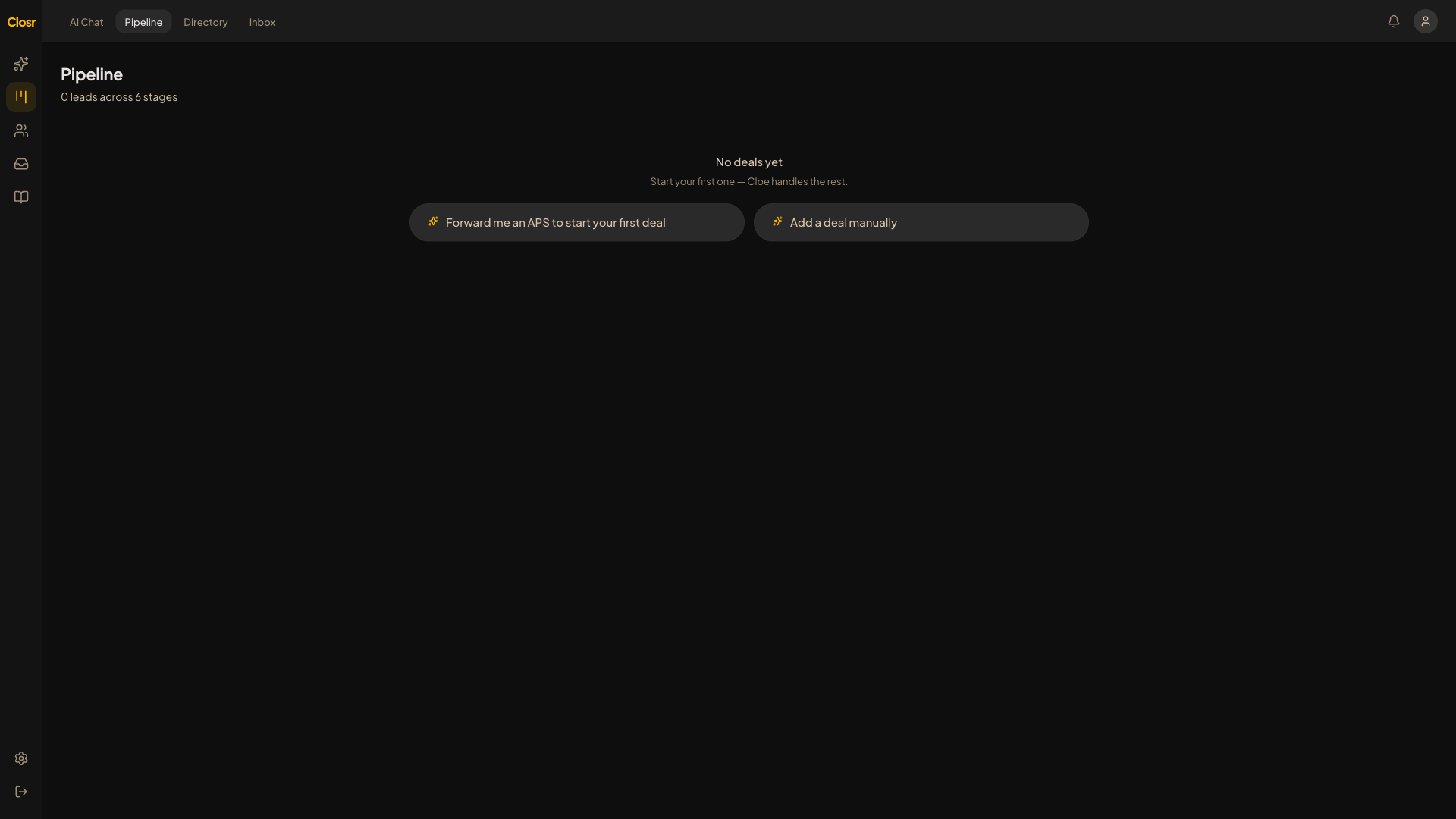
Pipeline kanban + conversation threads
Closr organizes deals two ways. The Pipeline tab is a kanban: every deal as a tile, dragged across stages from Contacted through Closed. The Brief tab has conversation threads, one per active deal, one per active client, plus an always-on Brief catch-all. The kanban tells you where; the thread is where the actual work lives.
Using the Pipeline
- 1Open the Pipeline tab.
- 2See your deals by stage: Contacted, Showing Scheduled, Offer Made, Under Contract, Firm, and Closed Deals.
- 3Tiles show the property address (headline), the client name (secondary), value, AI score, days in stage.
- 4Drag any tile to move it to a different stage. Lead status updates automatically.
Deal threads
Click any deal tile and you'll jump to its conversation thread in Brief. That thread is scoped to the deal: every message you send Closr about 142 Eastern stays in the 142 Eastern thread. Drafting follow-ups, attaching new docs, scheduling showings, all happens here.
The Threads sidebar
Inside Brief, the left sidebar shows your threads grouped by Deals, Clients, and Adhoc, with Brief pinned at the top as the always-on catch-all. Active deals at the top of Deals; closed ones tuck under "Show closed." Inactive clients (no activity in 30 days) tuck under "Show inactive." Everything stays searchable forever.
Closed deals don't appear in the active stages. They're in the Closed Deals column on the far right. A deal moves there automatically when its closing date passes and status flips to CLOSED.